The Connections tool is not an App so you will NOT find it in the Apple App Store or in the Google Play Store. Here is how you can create a shortcut to Connections on your phone’s home screen:
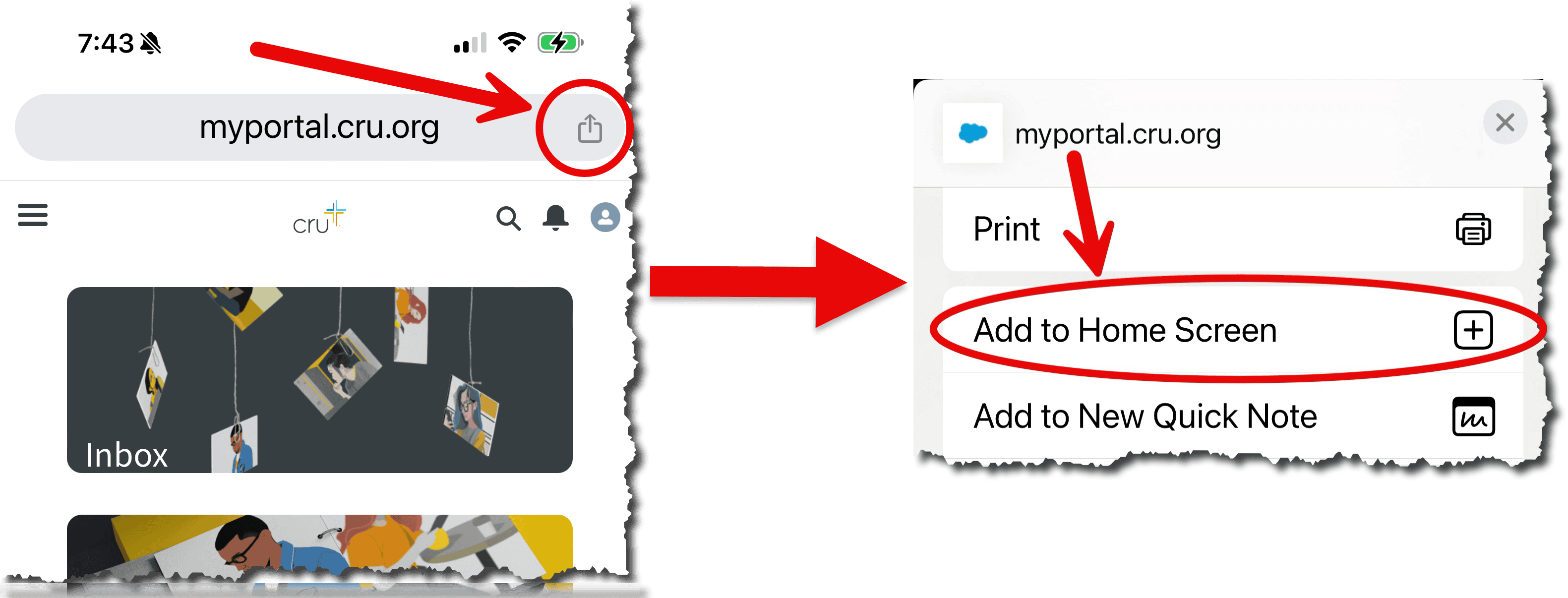
iPhone users
- Open your browser (Chrome or Safari) and navigate to Connections (myportal.cru.org/connections)
- Login to Connections with okta
- Click the “Share” icon in the browser address bar
- Click “add to home screen”
Android users
- Open Chrome.
- Navigate to the website or web page you want to pin to your home screen.
- Tap the menu icon (3 dots in upper right-hand corner) and tap Add to home screen.
- Choose a name for the website shortcut, then Chrome will add it to your home screen.